MCP Servers: Making Google Analytics Actually Useful for Developers
How Model Context Protocol servers turn Google Analytics from a marketing dashboard into a developer-friendly data source you can query conversationally.
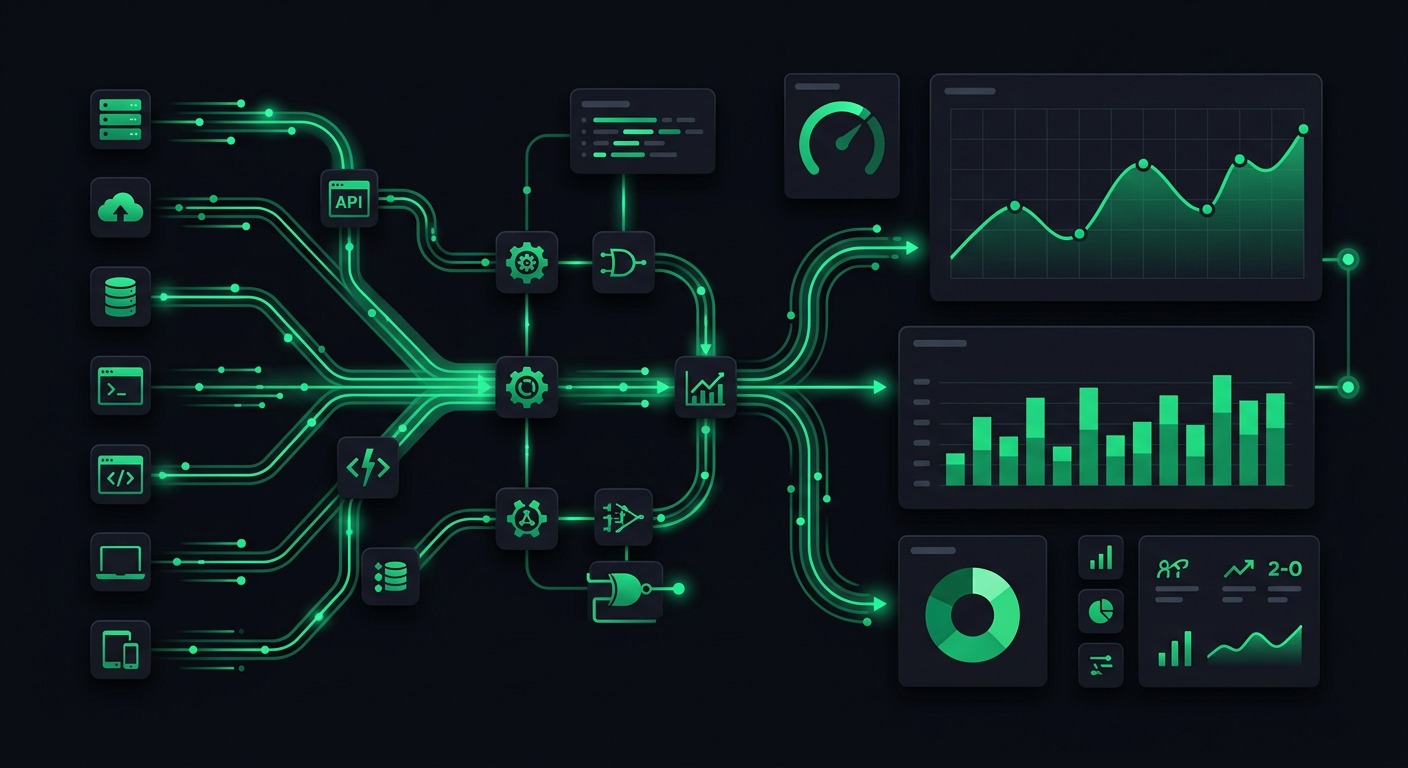
Google Analytics has always been a marketing tool that developers tolerate. You set up tracking, configure events, and then hand it off to someone who actually enjoys clicking through dashboards. When you need data yourself — bounce rates for a specific page, conversion funnels for a new feature, real-time active users segmented by country — you end up clicking through five nested menus, fighting the GA4 query builder, and wondering why it takes more effort to ask a question than to answer it.
Model Context Protocol changes this entirely. By wrapping GA4's reporting API in an MCP server, you can query your analytics data conversationally through Claude or any MCP-compatible AI assistant. No dashboards. No query builders. Just ask what you want to know.
What MCP Is and Why It Matters
Model Context Protocol is an open standard created by Anthropic that defines how AI assistants interact with external data sources and tools. Think of it as a USB-C port for AI — a universal interface that lets any compatible assistant connect to any compatible data source without custom integration code for each pairing.
Before MCP, connecting an AI assistant to your analytics data meant building a bespoke pipeline: export data to CSV, paste it into a chat, hope the context window is large enough. Or build a custom API integration, write prompt templates, handle authentication yourself. Every new data source required a new integration.
MCP standardizes this into three concepts:
- Resources — structured data the server exposes (your GA4 properties, reports, dimensions, metrics)
- Tools — actions the AI can invoke (run a report, query real-time data, list available metrics)
- Prompts — reusable prompt templates the server provides (common analytics queries pre-structured for good results)
The server handles authentication, data fetching, and response formatting. The AI assistant handles natural language understanding and result interpretation. Neither side needs to know the other's implementation details.
Why This Matters for Analytics Specifically
Analytics platforms are information-dense but interaction-poor. GA4 has extraordinarily powerful data — it tracks every user session, every page view, every event, every conversion across your entire product. But accessing that data requires you to think in GA4's vocabulary: dimensions, metrics, segments, date ranges, filters, comparisons. You have to translate your question into GA4's query model before you can get an answer.
An MCP server inverts this. You ask your question in plain language. The AI translates it into the correct API calls, executes them, and interprets the results. The friction between "I have a question" and "I have an answer" drops from minutes to seconds.
Building an MCP Server for GA4
The implementation involves three layers: the MCP server framework, the Google Analytics Data API client, and the glue logic that maps natural language intent to API calls.
Project Setup
mkdir ga4-mcp-server
cd ga4-mcp-server
npm init -y
npm install @modelcontextprotocol/sdk @google-analytics/data zod dotenv
npm install -D typescript @types/node
The @modelcontextprotocol/sdk package provides the server framework. @google-analytics/data is Google's official client library for the GA4 Data API (the reporting API, not the Admin API). zod handles input validation for tool parameters.
Authentication with Google
GA4 API authentication uses a Google Cloud service account. Create one in the Google Cloud Console, download the JSON key file, and grant it "Viewer" access to your GA4 property.
// src/analytics-client.ts
import { BetaAnalyticsDataClient } from "@google-analytics/data";

const analyticsClient = new BetaAnalyticsDataClient({
  keyFilename: process.env.GOOGLE_APPLICATION_CREDENTIALS,
});

const propertyId = process.env.GA4_PROPERTY_ID;

export async function runReport(
  dimensions: string[],
  metrics: string[],
  startDate: string,
  endDate: string,
  dimensionFilter?: Record<string, string>
) {
  const request: any = {
    property: `properties/${propertyId}`,
    dimensions: dimensions.map((d) => ({ name: d })),
    metrics: metrics.map((m) => ({ name: m })),
    dateRanges: [{ startDate, endDate }],
  };

  if (dimensionFilter) {
    const filterKey = Object.keys(dimensionFilter)[0];
    request.dimensionFilter = {
      filter: {
        fieldName: filterKey,
        stringFilter: {
          value: dimensionFilter[filterKey],
          matchType: "EXACT",
        },
      },
    };
  }

  const [response] = await analyticsClient.runReport(request);
  return formatReportResponse(response);
}

function formatReportResponse(response: any) {
  if (!response.rows || response.rows.length === 0) {
    return { data: [], summary: "No data found for the specified query." };
  }

  const headers = [
    ...(response.dimensionHeaders?.map((h: any) => h.name) ?? []),
    ...(response.metricHeaders?.map((h: any) => h.name) ?? []),
  ];

  const rows = response.rows.map((row: any) => {
    const values = [
      ...(row.dimensionValues?.map((v: any) => v.value) ?? []),
      ...(row.metricValues?.map((v: any) => v.value) ?? []),
    ];
    return Object.fromEntries(headers.map((h, i) => [h, values[i]]));
  });

  return {
    data: rows,
    rowCount: response.rowCount,
    summary: `Returned ${rows.length} rows.`,
  };
}
The MCP Server
// src/server.ts
import { McpServer } from "@modelcontextprotocol/sdk/server/mcp.js";
import { StdioServerTransport } from "@modelcontextprotocol/sdk/server/stdio.js";
import { z } from "zod";
import { runReport, getRealtimeData, getAvailableMetrics } from "./analytics-client";

const server = new McpServer({
  name: "ga4-analytics",
  version: "1.0.0",
});

// Tool: Run a custom report
server.tool(
  "run_report",
  "Run a Google Analytics 4 report with specified dimensions, metrics, and date range",
  {
    dimensions: z.array(z.string()).describe("GA4 dimensions like 'pagePath', 'country', 'deviceCategory'"),
    metrics: z.array(z.string()).describe("GA4 metrics like 'activeUsers', 'sessions', 'bounceRate'"),
    startDate: z.string().describe("Start date in YYYY-MM-DD format or relative like '7daysAgo'"),
    endDate: z.string().describe("End date in YYYY-MM-DD format or 'today'"),
    filter: z.record(z.string()).optional().describe("Optional dimension filter as key-value pair"),
  },
  async ({ dimensions, metrics, startDate, endDate, filter }) => {
    const result = await runReport(dimensions, metrics, startDate, endDate, filter);
    return {
      content: [{ type: "text", text: JSON.stringify(result, null, 2) }],
    };
  }
);

// Tool: Get real-time active users
server.tool(
  "realtime_users",
  "Get current real-time active users, optionally segmented by a dimension",
  {
    dimension: z.string().optional().describe("Optional dimension to segment by, like 'country' or 'pagePath'"),
  },
  async ({ dimension }) => {
    const result = await getRealtimeData(dimension);
    return {
      content: [{ type: "text", text: JSON.stringify(result, null, 2) }],
    };
  }
);

// Tool: List available metrics and dimensions
server.tool(
  "list_metrics",
  "List all available GA4 metrics and dimensions for the connected property",
  {},
  async () => {
    const result = await getAvailableMetrics();
    return {
      content: [{ type: "text", text: JSON.stringify(result, null, 2) }],
    };
  }
);

// Resource: Property metadata
server.resource(
  "property-info",
  "ga4://property/info",
  async (uri) => ({
    contents: [{
      uri: uri.href,
      mimeType: "application/json",
      text: JSON.stringify({
        propertyId: process.env.GA4_PROPERTY_ID,
        description: "Connected GA4 property for analytics queries",
      }),
    }],
  })
);

async function main() {
  const transport = new StdioServerTransport();
  await server.connect(transport);
}

main().catch(console.error);
This gives the AI assistant three tools: run arbitrary reports, check real-time data, and discover what metrics and dimensions are available. The discovery tool is important — it lets the AI figure out the correct field names without you having to remember whether it is activeUsers or active_users or totalUsers.
Real-Time Data Endpoint
// Added to analytics-client.ts
export async function getRealtimeData(dimension?: string) {
  const request: any = {
    property: `properties/${propertyId}`,
    metrics: [{ name: "activeUsers" }],
  };

  if (dimension) {
    request.dimensions = [{ name: dimension }];
  }

  const [response] = await analyticsClient.runRealtimeReport(request);
  return formatReportResponse(response);
}
Real-time data is one of the highest-value features. In a dashboard, you'd navigate to the real-time section, wait for it to load, and read numbers. Through MCP, you type "how many people are on the site right now?" and get an answer in two seconds.
Real Queries Developers Actually Want to Run
Theoretical capabilities are boring. Here are the actual queries I find myself running daily, and what they look like as conversational requests to the AI:
Traffic Analysis
"What are the top 10 pages by session count this week, and how does each compare to last week?"
The AI translates this into two runReport calls — one for the current week, one for the previous week — then calculates the delta and presents a comparison table. In GA4's interface, this requires configuring a comparison date range, selecting the right report, adding the page dimension, sorting by sessions, and limiting to 10. Through MCP, it is one sentence.
"Show me traffic from organic search for the last 30 days, broken down by landing page."
This becomes a single report with sessionDefaultChannelGroup as a dimension filter (filtered to "Organic Search"), landingPagePlusQueryString as a dimension, and sessions plus engagedSessions as metrics.
Conversion Debugging
"What's the bounce rate on /pricing compared to /features for the last two weeks?"
Two filtered report calls, results compared side by side. This is the kind of question that takes 30 seconds to ask conversationally and 3 minutes to answer through the GA4 interface.
"Which countries have the highest conversion rate for the signup event?"
A single report with country dimension, eventCount metric filtered to the sign_up event, and sessions to calculate the conversion rate. The AI can even do the division and present percentages directly.
Performance Monitoring
"What's the average engagement time per session on mobile vs desktop this month?"
Segmented by deviceCategory, measuring averageSessionDuration and engagedSessions. Simple query, but one that requires navigating to the right report and configuring segments in GA4.
"Are there any pages with more than 1000 views this week but an engagement rate below 30%?"
This is where conversational analytics really shines. The AI runs the report, filters the results programmatically, and returns only the pages that match both criteria. In GA4, you would need to export to a spreadsheet and filter manually, or build a custom exploration.
Connecting to Claude and AI Assistants
Claude Desktop Configuration
Once your MCP server is built, connecting it to Claude Desktop is a configuration file edit:
{
  "mcpServers": {
    "ga4-analytics": {
      "command": "node",
      "args": ["/path/to/ga4-mcp-server/dist/server.js"],
      "env": {
        "GOOGLE_APPLICATION_CREDENTIALS": "/path/to/service-account-key.json",
        "GA4_PROPERTY_ID": "123456789"
      }
    }
  }
}
On macOS, this goes in ~/Library/Application Support/Claude/claude_desktop_config.json. On Windows, it is %APPDATA%\Claude\claude_desktop_config.json.
After restarting Claude Desktop, the GA4 tools appear in the tools menu. Claude can now call them directly in conversation.
Claude Code Integration
For developers who work primarily in the terminal, Claude Code supports MCP servers natively. Add the server to your project's .mcp.json:
{
  "mcpServers": {
    "ga4-analytics": {
      "command": "node",
      "args": ["./mcp-servers/ga4/dist/server.js"],
      "env": {
        "GOOGLE_APPLICATION_CREDENTIALS": "./credentials/ga4-service-account.json",
        "GA4_PROPERTY_ID": "123456789"
      }
    }
  }
}
Now you can query analytics data without leaving your editor. While debugging a performance regression, you can ask "what's the bounce rate on /checkout this week vs last week?" without context-switching to a browser.
Using with Other MCP-Compatible Clients
The beauty of MCP as a standard is that any compatible client works. Cursor, Windsurf, and other MCP-supporting editors can connect to the same server. You build the server once and it works everywhere.
Practical Examples of Conversational Analytics
Let me walk through a real workflow I use regularly.
Morning Check-In
I start the day by asking Claude: "Give me a summary of yesterday's traffic — total sessions, active users, top 5 pages, and any pages with engagement rate below 25%."
The AI makes three tool calls: one for overall metrics, one for top pages, one for low-engagement pages. It comes back with something like:
Yesterday: 2,341 sessions from 1,892 unique users. Top pages were /home (580 sessions), /pricing (412), /docs/getting-started (389), /blog/mcp-guide (267), /features (198). Two pages had engagement below 25%: /legal/terms (12%) and /blog/old-post-2024 (22%).
This would take 5-10 minutes in the GA4 interface. Through MCP, it takes 15 seconds.
Feature Launch Monitoring
When I ship a new feature, I want to know if people are finding it and using it. "Compare traffic to /features/new-dashboard for the last 3 days vs the 3 days before launch, broken down by acquisition channel."
The AI runs the comparison, identifies which channels are driving discovery (usually direct and organic search lag behind social and referral in the first days after launch), and highlights any anomalies.
Debugging User Complaints
When users report that "the site feels slow," I can ask: "What's the average page load time by page for the last 7 days, sorted by slowest first?" If GA4 has Web Vitals data (via the measurement protocol or gtag events), the MCP server can surface this without me opening a browser.
Weekly Reporting
"Generate a week-over-week comparison of sessions, new users, engagement rate, and conversion rate for each of our top 20 pages."
This produces a formatted table that I can drop directly into a Slack message or a team update. No spreadsheet gymnastics, no screenshot cropping.
Building Advanced Features
Caching Layer
GA4's API has rate limits (typically 10 requests per minute per property for the free tier). For an MCP server that might get queried frequently, add a caching layer:
import { createHash } from "crypto";

const cache = new Map<string, { data: any; expiry: number }>();

function getCacheKey(dimensions: string[], metrics: string[], startDate: string, endDate: string): string {
  const input = JSON.stringify({ dimensions, metrics, startDate, endDate });
  return createHash("md5").update(input).digest("hex");
}

export async function cachedRunReport(
  dimensions: string[],
  metrics: string[],
  startDate: string,
  endDate: string
) {
  const key = getCacheKey(dimensions, metrics, startDate, endDate);
  const cached = cache.get(key);

  if (cached && cached.expiry > Date.now()) {
    return cached.data;
  }

  const result = await runReport(dimensions, metrics, startDate, endDate);

  // Cache for 5 minutes (real-time queries get shorter TTL)
  const ttl = startDate === "today" ? 60_000 : 300_000;
  cache.set(key, { data: result, expiry: Date.now() + ttl });

  return result;
}
Real-time queries get a 1-minute TTL. Historical queries get 5 minutes. This keeps you well within rate limits during a conversational session where the AI might make several related queries in quick succession.
Multi-Property Support
If you manage multiple products or clients, extend the server to support switching between GA4 properties:
server.tool(
  "switch_property",
  "Switch to a different GA4 property",
  {
    propertyId: z.string().describe("The GA4 property ID to switch to"),
  },
  async ({ propertyId }) => {
    // Validate access
    const properties = await listAccessibleProperties();
    if (!properties.includes(propertyId)) {
      return {
        content: [{ type: "text", text: `No access to property ${propertyId}` }],
      };
    }

    currentPropertyId = propertyId;
    return {
      content: [{ type: "text", text: `Switched to property ${propertyId}` }],
    };
  }
);
Now you can say "switch to the staging property and show me yesterday's traffic" without reconfiguring anything.
Security Considerations
Running an MCP server that accesses analytics data introduces several security concerns that need deliberate handling.
Credential Management
The service account key file is the most sensitive piece. Never commit it to version control. Use environment variables or a secrets manager. If you are running the MCP server locally (which is the common case for Claude Desktop), store the key file outside your project directory with restricted file permissions:
chmod 600 /path/to/service-account-key.json
For team environments, consider using Google Cloud's Workload Identity Federation instead of a key file. It eliminates the static credential entirely by using short-lived tokens tied to the runtime identity.
Principle of Least Privilege
The service account should have read-only access to GA4. Specifically, grant the "Viewer" role at the GA4 property level — not the "Editor" or "Administrator" role. The MCP server never needs to modify your analytics configuration, create audiences, or change measurement settings.
At the Google Cloud project level, grant only the analyticsdata.readonly scope. This prevents the service account from accessing any other Google Cloud services even if the key is compromised.
Data Exposure Scope
Be deliberate about what data the MCP server can access. GA4 can contain PII — user IDs, client IDs, IP-derived geolocation. Your MCP server should strip or mask fields that are not necessary for the queries you want to support.
const BLOCKED_DIMENSIONS = ["userID", "clientId"];

function validateDimensions(dimensions: string[]) {
  const blocked = dimensions.filter((d) => BLOCKED_DIMENSIONS.includes(d));
  if (blocked.length > 0) {
    throw new Error(`Blocked dimensions for privacy: ${blocked.join(", ")}`);
  }
}
This is especially important if other team members can interact with the MCP server. You want to prevent casual queries that could expose individual user data.
Transport Security
MCP currently runs over stdio (standard input/output) when used with Claude Desktop, which means communication happens within local process boundaries. There is no network exposure. However, if you deploy an MCP server over HTTP (using the SSE transport), you need TLS, authentication tokens, and rate limiting — treat it like any other API endpoint.
Audit Logging
Log every query the MCP server processes. Not just for security — for accountability. When someone asks "who queried our analytics data and when," you should have an answer.
function logQuery(tool: string, params: Record<string, unknown>) {
  console.log(JSON.stringify({
    timestamp: new Date().toISOString(),
    tool,
    params,
    propertyId: currentPropertyId,
  }));
}
Trade-Offs and Limitations
What Works Well
Conversational analytics eliminates the GA4 learning curve for developers. You do not need to know GA4's dimension and metric names, report types, or filter syntax. The AI handles the translation. For ad-hoc questions — the kind you ask once and never repeat — this is dramatically faster than the dashboard.
Combining analytics with development context is powerful. When you are debugging in Claude Code and you can simultaneously check analytics data, the feedback loop tightens. You see the code, the error logs, and the user impact in one place.
What Does Not Work Well
Complex explorations that require iterative refinement are still faster in GA4's Explore interface. If you are building a funnel analysis with multiple stages, custom segments, and comparison groups, the visual builder gives you immediate feedback that a conversational interface cannot match.
Real-time dashboards that auto-refresh are outside MCP's current model. MCP is request-response — you ask, it answers. For a live-updating dashboard showing real-time users, a purpose-built tool like GA4's real-time view or a custom Grafana panel is better.
Data volume is a constraint. The GA4 Data API returns up to 100,000 rows per request. For properties with millions of daily events, you may need to be specific about dimensions and date ranges to avoid hitting this limit. The API also has sampling behavior for large datasets — results may be estimated rather than exact for high-cardinality queries.
MCP vs. Direct API Integration
If you are building a product feature that needs analytics data (like an admin dashboard for your SaaS), use the GA4 API directly. MCP is for human-in-the-loop querying, not programmatic data pipelines. The overhead of natural language translation and AI interpretation is unnecessary when you know exactly what query to run.
MCP shines when the question is unstructured, when you do not know exactly what you are looking for, or when the effort of building a proper integration is not justified for a one-off question. It is the analytics equivalent of opening a REPL instead of writing a script.
Getting Started
If you want to try this yourself, the minimal path is:
- Create a Google Cloud project and enable the Google Analytics Data API.
- Create a service account with Viewer access to your GA4 property.
- Download the service account key JSON.
- Clone or build the MCP server as described above.
- Add the server to your Claude Desktop or Claude Code configuration.
- Start asking questions.
The whole setup takes about 30 minutes if you already have a GA4 property. The payoff is immediate — the first time you get an answer to an analytics question in 5 seconds instead of 5 minutes, you will not want to go back to the dashboard.
Analytics data is one of the most underused assets in most development teams. Not because it is not valuable, but because accessing it has always been inconvenient enough to discourage casual querying. MCP removes that friction. The data is the same. The questions are the same. The time to answer is what changes.
Danil Ulmashev
Full Stack Developer
Need a senior developer to build something like this for your business?