Automating Android Deployments to Google Play Store
Setting up automated Android builds and deployments — from Gradle configuration to Play Store publishing via CI/CD.
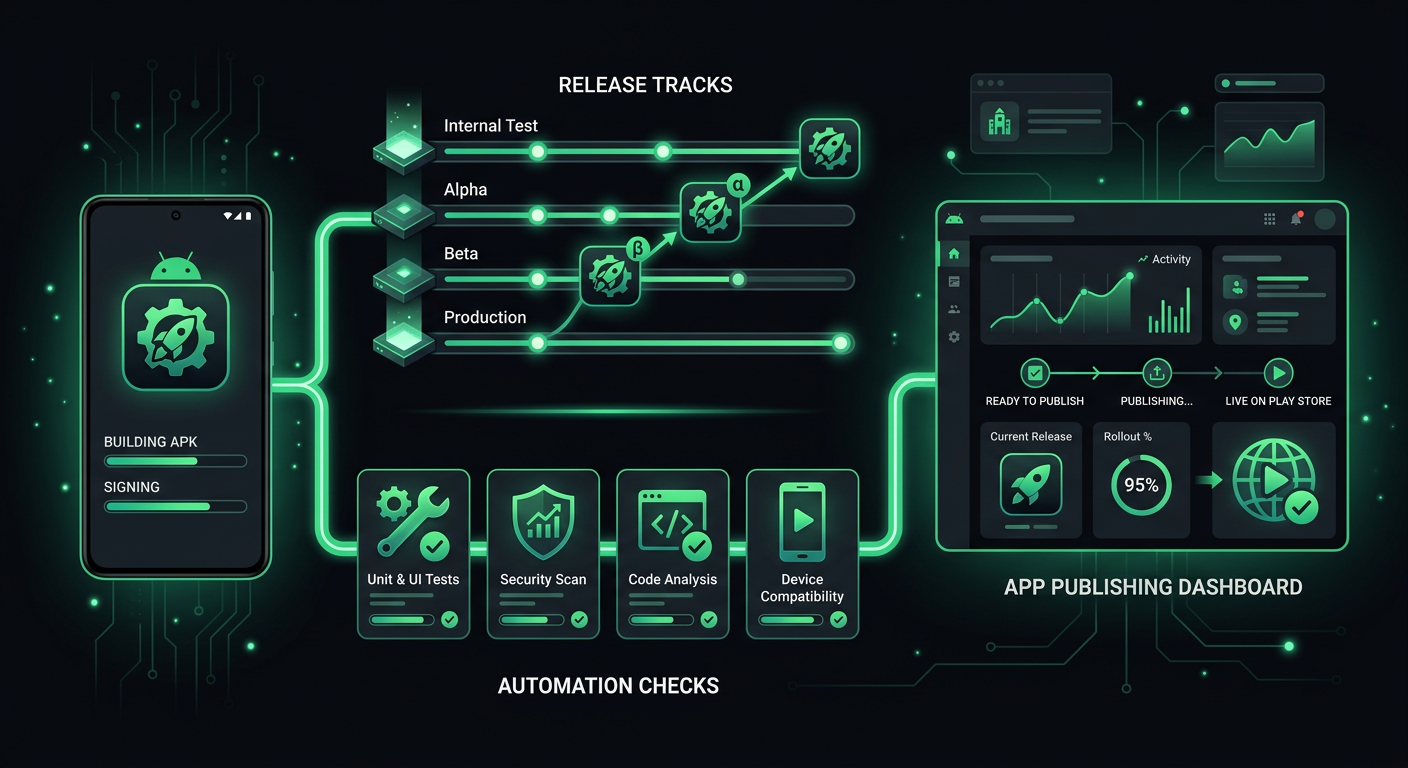
Shipping an Android app to the Play Store sounds like it should be simple — build an APK, upload it, done. In practice, the process involves signing configurations, build variants, bundle formats, Play Store tracks, staged rollouts, and enough Gradle configuration to make anyone question their career choices. After automating Android deployments across several projects, including Flutter apps that need both iOS and Android pipelines, I have a setup that handles everything from commit to production rollout without manual intervention.
The Android Build System
Before automating anything, you need a solid understanding of how Android builds work. Unlike iOS, where Xcode handles most of the complexity behind a GUI, Android's build system is entirely Gradle-based and configured through code. This is actually an advantage for automation — everything is explicit and version-controlled.
Gradle Configuration for Release Builds
Your android/app/build.gradle (or build.gradle.kts if you have migrated to Kotlin DSL) is the central configuration file. For release builds, you need to configure signing, minification, and optimization.
android {
    compileSdkVersion 35

    defaultConfig {
        applicationId "com.yourcompany.yourapp"
        minSdkVersion 24
        targetSdkVersion 35
        versionCode flutterVersionCode.toInteger()
        versionName flutterVersionName
    }

    signingConfigs {
        release {
            keyAlias System.getenv("KEY_ALIAS") ?: properties["keyAlias"]
            keyPassword System.getenv("KEY_PASSWORD") ?: properties["keyPassword"]
            storeFile file(System.getenv("KEYSTORE_PATH") ?: properties["keystorePath"] ?: "keystore.jks")
            storePassword System.getenv("STORE_PASSWORD") ?: properties["storePassword"]
        }
    }

    buildTypes {
        release {
            signingConfig signingConfigs.release
            minifyEnabled true
            shrinkResources true
            proguardFiles getDefaultProguardFile('proguard-android-optimize.txt'), 'proguard-rules.pro'
        }
    }
}
The signing config reads from environment variables first, then falls back to a local properties file. This pattern lets developers sign builds locally using a key.properties file while CI uses environment variables — the same Gradle file works in both contexts without modification.
The Local Properties File
For local development, create a key.properties file in your android/ directory (and add it to .gitignore immediately):
storePassword=your_store_password
keyPassword=your_key_password
keyAlias=your_key_alias
keystorePath=../keys/release-keystore.jks
Then reference it in your build.gradle:
def keystoreProperties = new Properties()
def keystorePropertiesFile = rootProject.file('key.properties')
if (keystorePropertiesFile.exists()) {
    keystoreProperties.load(new FileInputStream(keystorePropertiesFile))
}
Signing Configuration
Android app signing is simpler than iOS code signing, but it carries a permanent risk: if you lose your upload key, you lose the ability to update your app. Google introduced Play App Signing to mitigate this, and I strongly recommend using it.
Play App Signing
With Play App Signing enabled, Google holds the actual distribution key. You sign your uploads with an upload key, and Google re-signs with the distribution key before delivering to users. The benefits:
- Key loss recovery: If you lose your upload key, Google can reset it. Without Play App Signing, losing your key means creating a new app listing.
- Smaller APKs: Google can optimize the app for each device configuration using the distribution key.
- Key rotation: You can rotate your upload key without affecting installed users.
Enable it in the Play Console under Setup > App signing. For new apps, it is enabled by default.
Generating a Keystore
If you need to create a new keystore:
keytool -genkey -v \
  -keystore release-keystore.jks \
  -keyalg RSA \
  -keysize 2048 \
  -validity 10000 \
  -alias your_key_alias
Store this keystore file securely. For CI, I base64-encode it and store it as a GitHub Actions secret:
base64 -i release-keystore.jks | pbcopy
Then decode it in the CI workflow before building:
- name: Decode keystore
  run: echo "${{ secrets.KEYSTORE_BASE64 }}" | base64 --decode > android/app/keystore.jks
AAB vs APK
Google now requires Android App Bundles (AAB) for all new apps on the Play Store. The difference matters for your build pipeline.
APK (Android Package) is a single file containing everything for all device configurations. It is larger, but universal — any Android device can install any APK. APKs are still useful for internal distribution, testing on physical devices, and distribution outside the Play Store.
AAB (Android App Bundle) contains all the code and resources but lets Google Play generate optimized APKs for each device. A user with a Pixel phone only downloads the resources they need, not the assets for every screen density and CPU architecture. Bundles are typically 15-30% smaller than universal APKs.
For your CI pipeline, build both:
# For Play Store
flutter build appbundle --release

# For internal testing / direct installation
flutter build apk --release --split-per-abi
The --split-per-abi flag generates separate APKs for each CPU architecture (arm64-v8a, armeabi-v7a, x86_64), which reduces file size for direct distribution.
Fastlane Supply for Play Store
Fastlane's supply action handles Play Store uploads and metadata management, mirroring what deliver does for iOS.
Setting Up Supply
First, you need a Google Play service account with the right permissions.
- Go to Google Cloud Console and create a service account.
- Download the JSON key file.
- In the Play Console, go to Settings > API access and link the service account.
- Grant it "Release manager" permissions for your app.
# android/fastlane/Appfile
json_key_file(ENV["PLAY_STORE_JSON_KEY"] || "path/to/service-account.json")
package_name("com.yourcompany.yourapp")
Basic Upload
default_platform(:android)

platform :android do
  desc "Deploy to Play Store Internal Testing"
  lane :internal do
    gradle(
      task: "bundle",
      build_type: "Release",
      project_dir: "./"
    )

    supply(
      track: "internal",
      aab: "../build/app/outputs/bundle/release/app-release.aab",
      skip_upload_metadata: true,
      skip_upload_images: true,
      skip_upload_screenshots: true
    )
  end
end
For Flutter projects, I prefer running the Flutter build command directly rather than using the Gradle task through Fastlane, because Flutter's build process includes Dart compilation steps that Gradle alone does not handle correctly:
lane :internal do
  Dir.chdir("..") do
    sh("flutter build appbundle --release")
  end

  supply(
    track: "internal",
    aab: "../build/app/outputs/bundle/release/app-release.aab",
    skip_upload_metadata: true,
    skip_upload_images: true,
    skip_upload_screenshots: true
  )
end
Play Store Tracks
The Play Store has four tracks, and understanding when to use each one is important for your release strategy.
Internal Testing
- Up to 100 testers.
- No review required — builds are available almost instantly.
- Best for: development team testing, QA cycles, checking builds before promoting.
Closed Testing (Alpha)
- Unlimited testers, but you manage the list.
- Requires a brief review from Google (usually a few hours).
- Best for: beta programs with invited users, client previews.
Open Testing (Beta)
- Anyone can join from the Play Store listing.
- Requires review.
- Best for: public beta programs, gathering feedback before a wide release.
Production
- Available to all users.
- Full review required.
- Supports staged rollouts.
Promoting Between Tracks
Fastlane makes track promotion straightforward:
lane :promote_to_beta do
  supply(
    track: "internal",
    track_promote_to: "beta",
    skip_upload_changelogs: false,
    skip_upload_metadata: true,
    skip_upload_images: true,
    skip_upload_screenshots: true
  )
end

lane :promote_to_production do
  supply(
    track: "beta",
    track_promote_to: "production",
    rollout: "0.1",  # 10% staged rollout
    skip_upload_changelogs: false,
    skip_upload_metadata: true,
    skip_upload_images: true,
    skip_upload_screenshots: true
  )
end
Staged Rollouts
Staged rollouts are one of Android's biggest advantages over iOS. You can release to a percentage of users and increase gradually, monitoring crash rates and user feedback at each stage.
lane :staged_rollout do |options|
  percentage = options[:percentage] || "0.1"

  supply(
    track: "production",
    rollout: percentage,
    aab: "../build/app/outputs/bundle/release/app-release.aab"
  )
end

lane :increase_rollout do |options|
  percentage = options[:percentage] || "0.5"

  supply(
    track: "production",
    rollout: percentage,
    skip_upload_aab: true,
    skip_upload_metadata: true,
    skip_upload_images: true,
    skip_upload_screenshots: true
  )
end

lane :complete_rollout do
  supply(
    track: "production",
    rollout: "1.0",
    skip_upload_aab: true,
    skip_upload_metadata: true,
    skip_upload_images: true,
    skip_upload_screenshots: true
  )
end
A typical rollout schedule:
- Day 1: 10% — watch crash rates in Firebase Crashlytics.
- Day 2-3: 25% — check user feedback and support tickets.
- Day 4-5: 50% — verify no performance regressions at scale.
- Day 6-7: 100% — full release.
If something goes wrong at any stage, you can halt the rollout and push a fix without affecting all users.
GitHub Actions Workflow
Here is a complete CI/CD workflow for Android:
name: Deploy to Play Store

on:
  push:
    branches: [main]
  workflow_dispatch:
    inputs:
      track:
        description: 'Play Store track'
        required: true
        default: 'internal'
        type: choice
        options:
          - internal
          - alpha
          - beta
          - production

jobs:
  deploy:
    runs-on: ubuntu-latest
    timeout-minutes: 30

    steps:
      - uses: actions/checkout@v4

      - name: Setup Java
        uses: actions/setup-java@v4
        with:
          distribution: 'temurin'
          java-version: '17'
          cache: 'gradle'

      - name: Setup Flutter
        uses: subosito/flutter-action@v2
        with:
          flutter-version: '3.27.x'
          channel: stable
          cache: true

      - name: Setup Ruby
        uses: ruby/setup-ruby@v1
        with:
          ruby-version: '3.2'
          bundler-cache: true
          working-directory: android

      - name: Flutter dependencies
        run: flutter pub get

      - name: Decode keystore
        run: echo "${{ secrets.KEYSTORE_BASE64 }}" | base64 --decode > android/app/keystore.jks

      - name: Create service account file
        run: echo '${{ secrets.PLAY_STORE_SERVICE_ACCOUNT }}' > android/play-store-key.json

      - name: Build and deploy
        working-directory: android
        env:
          KEY_ALIAS: ${{ secrets.KEY_ALIAS }}
          KEY_PASSWORD: ${{ secrets.KEY_PASSWORD }}
          STORE_PASSWORD: ${{ secrets.STORE_PASSWORD }}
          KEYSTORE_PATH: app/keystore.jks
          PLAY_STORE_JSON_KEY: play-store-key.json
        run: bundle exec fastlane ${{ github.event.inputs.track || 'internal' }}

      - name: Cleanup secrets
        if: always()
        run: |
          rm -f android/app/keystore.jks
          rm -f android/play-store-key.json
A few things to note about this workflow:
Ubuntu runners work fine for Android. Unlike iOS, which requires macOS, Android builds run on Linux. Ubuntu runners are cheaper and start faster on GitHub Actions.
Java 17 is required for current versions of the Android Gradle Plugin. If your project uses an older AGP version, you might need Java 11, but this is increasingly rare.
The cleanup step removes decoded secrets even if the build fails. This is a defense-in-depth measure — GitHub Actions runners are ephemeral, but it is good practice.
Version Management
Android uses two version identifiers: versionCode (an integer that must increase with every upload) and versionName (the human-readable version string).
For Flutter projects, both come from pubspec.yaml:
version: 1.2.3+45
# 1.2.3 = versionName
# 45 = versionCode
I automate version code incrementing using the CI run number:
lane :set_version_code do
  build_number = ENV["GITHUB_RUN_NUMBER"] || "1"

  Dir.chdir("..") do
    current_version = sh("grep '^version:' pubspec.yaml | sed 's/version: //' | sed 's/+.*//'").strip
    sh("sed -i 's/^version: .*/version: #{current_version}+#{build_number}/' pubspec.yaml")
  end
end
This ensures the version code always increases, even across branches. If you need more control, you can fetch the latest version code from the Play Store:
lane :smart_version_code do
  current = google_play_track_version_codes(track: "internal").max || 0
  new_code = current + 1

  Dir.chdir("..") do
    current_version = sh("grep '^version:' pubspec.yaml | sed 's/version: //' | sed 's/+.*//'").strip
    sh("sed -i 's/^version: .*/version: #{current_version}+#{new_code}/' pubspec.yaml")
  end
end
Managing Play Store Listings
Supply can manage your entire Play Store listing from version-controlled files:
android/fastlane/metadata/android/
├── en-US/
│   ├── title.txt
│   ├── short_description.txt
│   ├── full_description.txt
│   ├── changelogs/
│   │   ├── default.txt
│   │   └── 45.txt          # Changelog for versionCode 45
│   └── images/
│       ├── phoneScreenshots/
│       │   ├── 1_home.png
│       │   └── 2_detail.png
│       ├── featureGraphic.png
│       └── icon.png
└── ru-RU/
    ├── title.txt
    ├── short_description.txt
    └── full_description.txt
To download your current listing as a starting point:
fastlane supply init
Then update files and push changes:
lane :update_listing do
  supply(
    skip_upload_aab: true,
    skip_upload_apk: true
  )
end
ProGuard and R8 Configuration
When minifyEnabled is true, R8 (the successor to ProGuard) shrinks, obfuscates, and optimizes your code. This is essential for production builds — it reduces APK size and makes reverse engineering harder — but it can also break things if not configured properly.
Common issues and their ProGuard rules:
# Keep Flutter's classes
-keep class io.flutter.** { *; }
-keep class io.flutter.plugins.** { *; }

# Keep Firebase classes
-keep class com.google.firebase.** { *; }

# Keep models used with JSON serialization
-keep class com.yourcompany.yourapp.models.** { *; }

# Keep classes referenced via reflection
-keepattributes *Annotation*
-keepattributes Signature
-keepattributes InnerClasses

# Common crash fix: OkHttp
-dontwarn okhttp3.**
-dontwarn okio.**
Test your release build thoroughly — R8 issues often manifest as runtime crashes that do not appear in debug builds. The --obfuscate and --split-debug-info flags in Flutter enable further optimizations:
flutter build appbundle --release --obfuscate --split-debug-info=build/symbols
Keep the build/symbols directory — you need it to symbolicate stack traces from crash reports.
The Complete Fastfile
default_platform(:android)

platform :android do
  desc "Deploy to internal testing"
  lane :internal do
    set_version_code
    build_release
    supply(
      track: "internal",
      aab: "../build/app/outputs/bundle/release/app-release.aab",
      skip_upload_metadata: true,
      skip_upload_images: true,
      skip_upload_screenshots: true
    )
  end

  desc "Deploy to closed beta"
  lane :beta do
    set_version_code
    build_release
    supply(
      track: "beta",
      aab: "../build/app/outputs/bundle/release/app-release.aab",
      skip_upload_metadata: true,
      skip_upload_images: true,
      skip_upload_screenshots: true
    )
  end

  desc "Deploy to production with staged rollout"
  lane :production do
    set_version_code
    build_release
    supply(
      track: "production",
      rollout: "0.1",
      aab: "../build/app/outputs/bundle/release/app-release.aab"
    )
  end

  desc "Promote internal to beta"
  lane :promote_to_beta do
    supply(
      track: "internal",
      track_promote_to: "beta"
    )
  end

  desc "Increase production rollout"
  lane :increase_rollout do |options|
    supply(
      track: "production",
      rollout: options[:percentage] || "0.5",
      skip_upload_aab: true
    )
  end

  private_lane :build_release do
    Dir.chdir("..") do
      sh("flutter build appbundle --release --obfuscate --split-debug-info=build/symbols")
    end
  end

  private_lane :set_version_code do
    build_number = ENV["GITHUB_RUN_NUMBER"] || Time.now.strftime("%Y%m%d%H%M")
    Dir.chdir("..") do
      current_version = sh("grep '^version:' pubspec.yaml | sed 's/version: //' | sed 's/+.*//'").strip
      sh("sed -i '' 's/^version: .*/version: #{current_version}+#{build_number}/' pubspec.yaml")
    end
  end
end
Differences from iOS Automation
Having automated both platforms, there are several key differences worth noting.
Signing is simpler on Android. A single keystore file versus the certificate-and-provisioning-profile dance on iOS. No need for match or any certificate management tool.
No mandatory macOS requirement. Android builds on Linux, which means cheaper and faster CI runners.
Faster review times. Google's review process is typically faster than Apple's, and internal track uploads require no review at all.
Staged rollouts are native. On iOS, you can do phased releases, but you cannot control the percentage or halt mid-rollout with the same granularity.
Play Store API is more permissive. You can manage almost everything programmatically, including store listing experiments and pricing. Apple's App Store Connect API has more restrictions.
The main disadvantage is Gradle build times. A clean Android build with R8 optimization can take significantly longer than an equivalent iOS build. Caching helps — both Gradle's built-in cache and CI-level caching of the .gradle directory.
What a Mature Pipeline Looks Like
After all the setup, the day-to-day experience should be invisible. Push to main, a build runs, and a few minutes later testers have a new version in the internal track. Tag a release, and a production build goes through with a staged rollout.
The pipeline removes an entire category of "it works on my machine" problems, ensures every build is reproducible, and gives the team confidence that shipping is a non-event. That last part is the real goal — making deployment so routine that nobody thinks about it.
Danil Ulmashev
Full Stack Developer
Need a senior developer to build something like this for your business?