CI/CD Pipeline Setup That Actually Works in Production
Battle-tested CI/CD patterns for real projects — from GitHub Actions workflows to deployment strategies that do not break production on Friday.
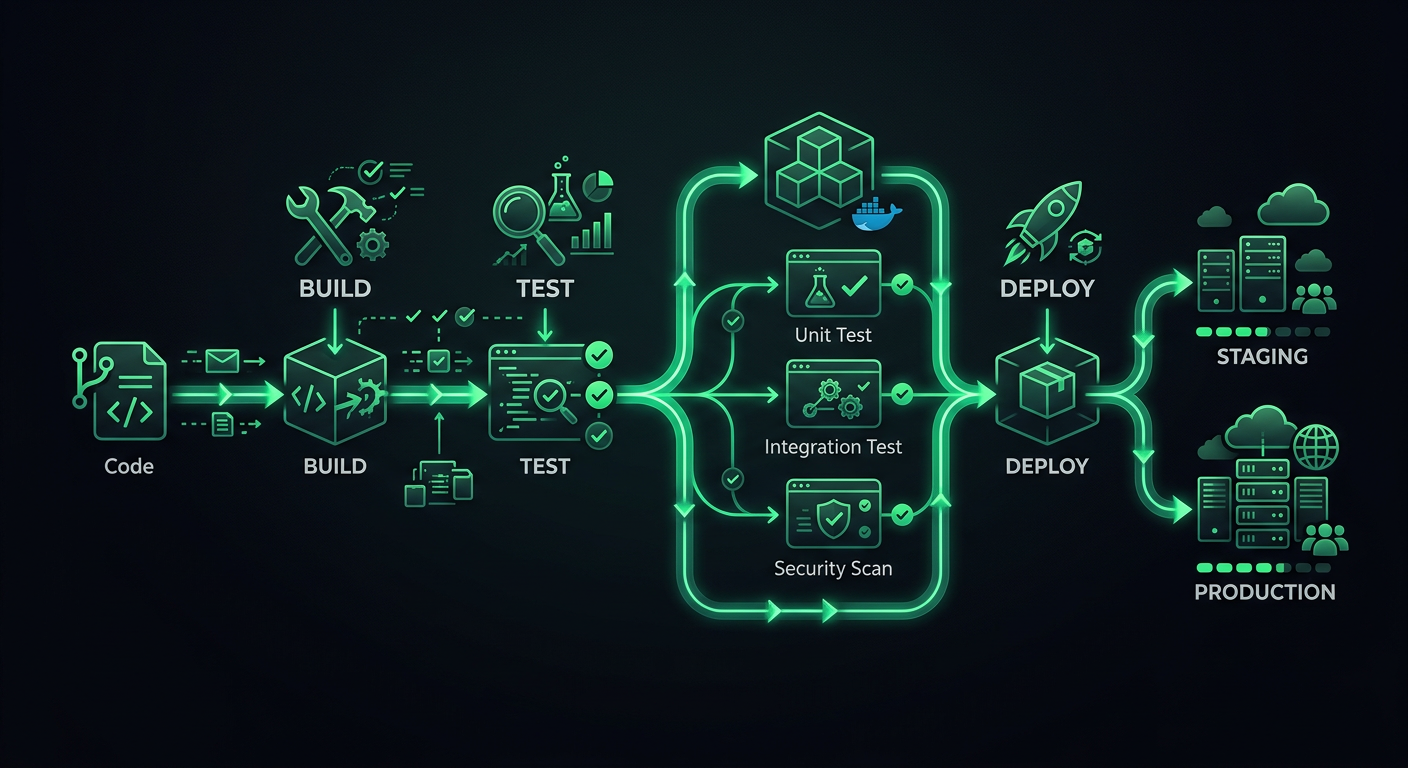
The first CI/CD pipeline I set up for a production project was a single GitHub Actions workflow that ran npm test and then deployed to a VPS via SSH. It worked until it did not — a failed deployment left the server in a half-updated state on a Friday evening, and I spent the weekend manually reverting files. That experience taught me that a deployment pipeline is not just "run tests then deploy." It is the entire system of checks, gates, and rollback mechanisms that stand between a git push and your users seeing new code.
This post covers the pipeline architecture I have refined across multiple production projects, with concrete GitHub Actions examples you can adapt.
Pipeline Architecture
A production pipeline has distinct stages, and each stage has a specific purpose. Skipping stages saves minutes now and costs hours later.
The Stages
Code Push
  │
  ├─→ Stage 1: Validation (lint, format, type-check)
  │
  ├─→ Stage 2: Testing (unit, integration)
  │
  ├─→ Stage 3: Build (compile, bundle, containerize)
  │
  ├─→ Stage 4: Deploy to Staging
  │
  ├─→ Stage 5: Smoke Tests / E2E on Staging
  │
  └─→ Stage 6: Deploy to Production
Each stage acts as a gate. If validation fails, tests never run. If tests fail, the build never starts. This saves compute time and provides fast feedback — developers know within 30 seconds if they forgot to run the linter, rather than waiting 8 minutes for a test suite to fail.
Trigger Strategy
Not every push needs the full pipeline. Here is the trigger configuration I use:
# .github/workflows/ci.yml
name: CI
on:
  push:
    branches: [main, develop]
  pull_request:
    branches: [main, develop]
    types: [opened, synchronize, reopened]
Pull requests run stages 1-3 (validate, test, build). Merges to develop deploy to staging. Merges to main deploy to production. This keeps PR feedback fast while ensuring deployments only happen from protected branches.
Stage 1: Validation
Validation catches formatting inconsistencies and type errors before tests run. These checks are fast (under 30 seconds) and catch the most common issues.
jobs:
  validate:
    name: Validate
    runs-on: ubuntu-latest
    steps:
      - uses: actions/checkout@v4

      - name: Setup Node.js
        uses: actions/setup-node@v4
        with:
          node-version: 20
          cache: 'npm'

      - name: Install dependencies
        run: npm ci

      - name: Check formatting
        run: npx prettier --check "src/**/*.{ts,tsx,js,jsx,json,css}"

      - name: Lint
        run: npx eslint src/ --max-warnings 0

      - name: Type check
        run: npx tsc --noEmit
The --max-warnings 0 Rule
ESLint distinguishes between errors (which fail the process) and warnings (which do not). Without --max-warnings 0, teams accumulate hundreds of warnings that everyone ignores. Treating warnings as errors in CI forces the team to either fix them or explicitly disable the rule. No middle ground.
Formatting as a CI Check, Not Just a Suggestion
Running Prettier in CI (with --check, not --write) ensures consistent formatting without relying on every developer having the right editor extension. If formatting fails in CI, the developer runs npx prettier --write . locally and commits the fix. This is non-negotiable — formatting debates end when a tool makes the decisions.
Stage 2: Testing
Testing is the backbone of the pipeline. I split tests into parallel jobs based on type for faster feedback.
  unit-tests:
    name: Unit Tests
    runs-on: ubuntu-latest
    needs: validate
    steps:
      - uses: actions/checkout@v4

      - name: Setup Node.js
        uses: actions/setup-node@v4
        with:
          node-version: 20
          cache: 'npm'

      - name: Install dependencies
        run: npm ci

      - name: Run unit tests
        run: npx vitest run --coverage --reporter=verbose

      - name: Upload coverage report
        if: always()
        uses: actions/upload-artifact@v4
        with:
          name: coverage-report
          path: coverage/

  integration-tests:
    name: Integration Tests
    runs-on: ubuntu-latest
    needs: validate
    services:
      postgres:
        image: postgres:16
        env:
          POSTGRES_USER: test
          POSTGRES_PASSWORD: test
          POSTGRES_DB: testdb
        ports:
          - 5432:5432
        options: >-
          --health-cmd pg_isready
          --health-interval 10s
          --health-timeout 5s
          --health-retries 5
      redis:
        image: redis:7
        ports:
          - 6379:6379
    steps:
      - uses: actions/checkout@v4

      - name: Setup Node.js
        uses: actions/setup-node@v4
        with:
          node-version: 20
          cache: 'npm'

      - name: Install dependencies
        run: npm ci

      - name: Run database migrations
        run: npx prisma migrate deploy
        env:
          DATABASE_URL: postgresql://test:test@localhost:5432/testdb

      - name: Run integration tests
        run: npx vitest run --config vitest.integration.config.ts
        env:
          DATABASE_URL: postgresql://test:test@localhost:5432/testdb
          REDIS_URL: redis://localhost:6379
Service Containers for Integration Tests
GitHub Actions service containers are underused. Instead of mocking your database in integration tests (which tests the mock, not your code), spin up a real PostgreSQL instance. The services block handles lifecycle management — the container starts before your tests and stops after.
This adds about 15-20 seconds to the job for container startup, but the confidence you get from testing against a real database is worth it.
Parallel Test Execution
Unit tests and integration tests run in parallel (both needs: validate, not needs: unit-tests). This reduces total pipeline time. If your unit tests take 2 minutes and integration tests take 4 minutes, parallel execution means you wait 4 minutes instead of 6.
Stage 3: Build
The build stage validates that the project compiles and produces deployable artifacts.
  build:
    name: Build
    runs-on: ubuntu-latest
    needs: [unit-tests, integration-tests]
    steps:
      - uses: actions/checkout@v4

      - name: Setup Node.js
        uses: actions/setup-node@v4
        with:
          node-version: 20
          cache: 'npm'

      - name: Install dependencies
        run: npm ci

      - name: Build application
        run: npm run build
        env:
          NODE_ENV: production

      - name: Upload build artifacts
        uses: actions/upload-artifact@v4
        with:
          name: build-output
          path: dist/
          retention-days: 7
Build Caching
For Docker-based deployments, layer caching dramatically speeds up builds:
  build-docker:
    name: Build Docker Image
    runs-on: ubuntu-latest
    needs: [unit-tests, integration-tests]
    steps:
      - uses: actions/checkout@v4

      - name: Set up Docker Buildx
        uses: docker/setup-buildx-action@v3

      - name: Login to Container Registry
        uses: docker/login-action@v3
        with:
          registry: ghcr.io
          username: ${{ github.actor }}
          password: ${{ secrets.GITHUB_TOKEN }}

      - name: Build and push
        uses: docker/build-push-action@v6
        with:
          context: .
          push: ${{ github.event_name != 'pull_request' }}
          tags: |
            ghcr.io/${{ github.repository }}:${{ github.sha }}
            ghcr.io/${{ github.repository }}:latest
          cache-from: type=gha
          cache-to: type=gha,mode=max
The cache-from: type=gha uses GitHub Actions cache to store Docker layers between runs. For a typical Node.js application, this reduces build time from 3-4 minutes to 30-60 seconds for dependency-only changes.
Dockerfile Best Practices for CI
The Dockerfile structure directly impacts build cache efficiency. Order layers from least-frequently changed to most-frequently changed:
FROM node:20-alpine AS base

# System dependencies (rarely changes)
RUN apk add --no-cache libc6-compat

# Package manifests (changes when dependencies change)
WORKDIR /app
COPY package.json package-lock.json ./

# Install dependencies (cached unless manifests change)
FROM base AS deps
RUN npm ci --production

FROM base AS build
RUN npm ci
COPY . .
RUN npm run build

# Production image
FROM node:20-alpine AS runner
WORKDIR /app
ENV NODE_ENV=production

COPY --from=deps /app/node_modules ./node_modules
COPY --from=build /app/dist ./dist
COPY --from=build /app/package.json ./

EXPOSE 3000
CMD ["node", "dist/server.js"]
Multi-stage builds keep the final image small (no dev dependencies, no source code), and the layer ordering ensures npm ci only runs when package.json or package-lock.json changes.
Stage 4: Deployment to Staging
Staging deployment happens automatically on merges to the develop branch. The staging environment should mirror production as closely as possible — same infrastructure, same environment variables (with different values), same scaling configuration.
  deploy-staging:
    name: Deploy to Staging
    runs-on: ubuntu-latest
    needs: build
    if: github.ref == 'refs/heads/develop' && github.event_name == 'push'
    environment:
      name: staging
      url: https://staging.example.com
    steps:
      - uses: actions/checkout@v4

      - name: Download build artifacts
        uses: actions/download-artifact@v4
        with:
          name: build-output
          path: dist/

      - name: Deploy to Cloud Run (Staging)
        uses: google-github-actions/deploy-cloudrun@v2
        with:
          service: my-api-staging
          region: us-central1
          image: ghcr.io/${{ github.repository }}:${{ github.sha }}
          env_vars: |
            NODE_ENV=staging
            DATABASE_URL=${{ secrets.STAGING_DATABASE_URL }}
GitHub Environments
The environment key in the workflow enables GitHub's environment protection rules. You can require manual approval, restrict which branches can deploy, and set environment-specific secrets. For staging, I typically require no approval (auto-deploy). For production, I require at least one reviewer.
Stage 5: Smoke Tests
After deploying to staging, run a basic set of tests against the deployed application to verify it actually works in the real environment.
  smoke-tests:
    name: Smoke Tests
    runs-on: ubuntu-latest
    needs: deploy-staging
    steps:
      - uses: actions/checkout@v4

      - name: Setup Node.js
        uses: actions/setup-node@v4
        with:
          node-version: 20
          cache: 'npm'

      - name: Install dependencies
        run: npm ci

      - name: Wait for deployment
        run: |
          for i in {1..30}; do
            status=$(curl -s -o /dev/null -w "%{http_code}" https://staging.example.com/health)
            if [ "$status" = "200" ]; then
              echo "Service is healthy"
              exit 0
            fi
            echo "Waiting for service... (attempt $i)"
            sleep 10
          done
          echo "Service did not become healthy"
          exit 1

      - name: Run smoke tests
        run: npx playwright test --config=playwright.smoke.config.ts
        env:
          BASE_URL: https://staging.example.com
Smoke tests are not full E2E tests. They verify critical paths: can the homepage load, can a user log in, does the main API endpoint return data. Five to ten scenarios that take under 2 minutes. If smoke tests fail, the staging deployment is rolled back and the production deployment does not proceed.
Stage 6: Production Deployment
Production deployment is where the deployment strategy matters most. There are several approaches, each with different trade-offs.
Rolling Deployment
The simplest strategy. New instances are brought up while old instances are drained. At any point during the deployment, some requests hit the old version and some hit the new version. This is the default for most container platforms.
Pros: Simple, no extra infrastructure cost. Cons: Two versions serve traffic simultaneously, which can cause issues with database schema changes or API contract changes.
Blue-Green Deployment
Two identical environments (blue and green) exist. One serves traffic while the other is idle. Deploy to the idle environment, verify it works, then switch the router. If something goes wrong, switch back.
  deploy-production:
    name: Deploy to Production
    runs-on: ubuntu-latest
    needs: smoke-tests
    if: github.ref == 'refs/heads/main' && github.event_name == 'push'
    environment:
      name: production
      url: https://api.example.com
    steps:
      - name: Deploy new revision
        uses: google-github-actions/deploy-cloudrun@v2
        with:
          service: my-api-production
          region: us-central1
          image: ghcr.io/${{ github.repository }}:${{ github.sha }}
          flags: '--no-traffic'

      - name: Run production health check
        run: |
          REVISION_URL=$(gcloud run revisions describe my-api-production-${{ github.sha }} \
            --region us-central1 --format='value(status.url)')
          status=$(curl -s -o /dev/null -w "%{http_code}" "$REVISION_URL/health")
          if [ "$status" != "200" ]; then
            echo "Health check failed"
            exit 1
          fi

      - name: Migrate traffic
        run: |
          gcloud run services update-traffic my-api-production \
            --region us-central1 \
            --to-latest
The --no-traffic flag deploys the new revision without sending it any traffic. After the health check passes, traffic is shifted to the new revision. If the health check fails, the workflow stops and the old revision continues serving.
Canary Deployment
Route a small percentage of traffic (5-10%) to the new version while monitoring error rates, latency, and key business metrics. If metrics look good after a defined period, gradually increase traffic. If metrics degrade, roll back.
      - name: Canary - route 10% of traffic
        run: |
          gcloud run services update-traffic my-api-production \
            --region us-central1 \
            --to-revisions=my-api-production-${{ github.sha }}=10

      - name: Monitor canary (5 minutes)
        run: |
          sleep 300
          # Check error rate for the canary revision
          ERROR_RATE=$(curl -s "$MONITORING_API/error-rate?revision=${{ github.sha }}")
          if (( $(echo "$ERROR_RATE > 1.0" | bc -l) )); then
            echo "Error rate too high: $ERROR_RATE%. Rolling back."
            gcloud run services update-traffic my-api-production \
              --region us-central1 \
              --to-latest
            exit 1
          fi

      - name: Promote canary to 100%
        run: |
          gcloud run services update-traffic my-api-production \
            --region us-central1 \
            --to-latest
When to use canary: When you have enough traffic that 10% still generates statistically meaningful error rates. For a service handling 100 requests/minute, 10% gives you 10 requests/minute — enough to detect elevated error rates within a few minutes. For a service handling 10 requests/minute, canary deployments are not meaningful.
Rollback Mechanisms
Every deployment must have a documented rollback path. "Re-deploy the old version" is a rollback strategy, but it is slow. Better options:
Instant Rollback via Traffic Shifting
If you deploy with --no-traffic and shift traffic, rollback is a single command:
# Roll back to the previous revision
gcloud run services update-traffic my-api-production \
  --region us-central1 \
  --to-revisions=PREVIOUS_REVISION=100
This takes effect in seconds because the old revision is still running.
Automated Rollback
Add a post-deployment monitoring step that automatically rolls back if error rates spike:
      - name: Post-deploy monitor
        run: |
          for i in {1..10}; do
            sleep 60
            ERROR_RATE=$(curl -s "$MONITORING_API/error-rate?window=5m")
            if (( $(echo "$ERROR_RATE > 2.0" | bc -l) )); then
              echo "Error rate $ERROR_RATE% exceeds threshold. Rolling back."
              gcloud run services update-traffic my-api-production \
                --region us-central1 \
                --to-revisions=$PREVIOUS_REVISION=100
              exit 1
            fi
            echo "Minute $i: Error rate $ERROR_RATE% — OK"
          done
Database Migration Rollback
This is the hardest part. If your deployment includes database schema changes, rolling back the application without rolling back the database creates a mismatch. The solution is expand-and-contract migrations:
- Expand: Add new columns/tables without removing old ones. Make new columns nullable or with defaults.
- Deploy: New code writes to both old and new columns. Reads from new columns with fallback to old.
- Migrate data: Backfill new columns from old data.
- Contract: Once verified, deploy code that only uses new columns. Then drop old columns.
This makes every step independently reversible.
Secrets Management
Never hardcode secrets. Never commit .env files. Here is how I handle secrets in GitHub Actions:
GitHub Secrets
For most cases, GitHub's built-in secrets are sufficient. They are encrypted, never exposed in logs, and scoped to repositories or organizations.
env:
  DATABASE_URL: ${{ secrets.DATABASE_URL }}
  API_KEY: ${{ secrets.API_KEY }}
Environment-Scoped Secrets
Different secrets for staging and production:
deploy-staging:
  environment: staging
  # ${{ secrets.DATABASE_URL }} resolves to the staging value

deploy-production:
  environment: production
  # ${{ secrets.DATABASE_URL }} resolves to the production value
External Secret Managers
For larger teams or stricter compliance requirements, use AWS Secrets Manager, Google Secret Manager, or HashiCorp Vault. The application fetches secrets at runtime rather than receiving them as environment variables.
import { SecretManagerServiceClient } from '@google-cloud/secret-manager';

const client = new SecretManagerServiceClient();

async function getSecret(name: string): Promise<string> {
  const [version] = await client.accessSecretVersion({
    name: `projects/my-project/secrets/${name}/versions/latest`,
  });
  return version.payload?.data?.toString() || '';
}
Monitoring Deployments
A deployment is not done when the code is live. It is done when you have confirmed the code is working.
Deployment Notifications
Send deployment events to Slack with relevant context:
      - name: Notify Slack
        if: always()
        uses: slackapi/slack-github-action@v2
        with:
          webhook: ${{ secrets.SLACK_WEBHOOK }}
          webhook-type: incoming-webhook
          payload: |
            {
              "text": "${{ job.status == 'success' && 'Deployed' || 'Failed to deploy' }} `${{ github.sha }}` to production",
              "blocks": [
                {
                  "type": "section",
                  "text": {
                    "type": "mrkdwn",
                    "text": "*${{ job.status == 'success' && ':white_check_mark: Deployment Successful' || ':x: Deployment Failed' }}*\nCommit: `${{ github.sha }}`\nAuthor: ${{ github.actor }}\nMessage: ${{ github.event.head_commit.message }}"
                  }
                }
              ]
            }
Post-Deployment Health Checks
After every production deployment, verify critical endpoints respond correctly:
      - name: Verify production health
        run: |
          endpoints=("/" "/api/health" "/api/v1/status")
          for endpoint in "${endpoints[@]}"; do
            status=$(curl -s -o /dev/null -w "%{http_code}" "https://api.example.com$endpoint")
            if [ "$status" != "200" ]; then
              echo "FAILED: $endpoint returned $status"
              exit 1
            fi
            echo "OK: $endpoint returned $status"
          done
A Complete Pipeline Example
Putting it all together, here is a condensed but complete pipeline for a Node.js application deployed to Cloud Run:
name: CI/CD Pipeline
on:
  push:
    branches: [main, develop]
  pull_request:
    branches: [main, develop]

concurrency:
  group: ${{ github.workflow }}-${{ github.ref }}
  cancel-in-progress: ${{ github.event_name == 'pull_request' }}

jobs:
  validate:
    runs-on: ubuntu-latest
    steps:
      - uses: actions/checkout@v4
      - uses: actions/setup-node@v4
        with: { node-version: 20, cache: 'npm' }
      - run: npm ci
      - run: npx prettier --check "src/**/*.{ts,tsx}"
      - run: npx eslint src/ --max-warnings 0
      - run: npx tsc --noEmit

  test:
    needs: validate
    runs-on: ubuntu-latest
    services:
      postgres:
        image: postgres:16
        env: { POSTGRES_USER: test, POSTGRES_PASSWORD: test, POSTGRES_DB: testdb }
        ports: ['5432:5432']
        options: --health-cmd pg_isready --health-interval 10s --health-timeout 5s --health-retries 5
    steps:
      - uses: actions/checkout@v4
      - uses: actions/setup-node@v4
        with: { node-version: 20, cache: 'npm' }
      - run: npm ci
      - run: npx vitest run --coverage
        env:
          DATABASE_URL: postgresql://test:test@localhost:5432/testdb

  build-and-push:
    needs: test
    if: github.event_name == 'push'
    runs-on: ubuntu-latest
    steps:
      - uses: actions/checkout@v4
      - uses: docker/setup-buildx-action@v3
      - uses: docker/login-action@v3
        with:
          registry: ghcr.io
          username: ${{ github.actor }}
          password: ${{ secrets.GITHUB_TOKEN }}
      - uses: docker/build-push-action@v6
        with:
          context: .
          push: true
          tags: ghcr.io/${{ github.repository }}:${{ github.sha }}
          cache-from: type=gha
          cache-to: type=gha,mode=max

  deploy:
    needs: build-and-push
    runs-on: ubuntu-latest
    environment:
      name: ${{ github.ref == 'refs/heads/main' && 'production' || 'staging' }}
    steps:
      - uses: google-github-actions/auth@v2
        with:
          credentials_json: ${{ secrets.GCP_SA_KEY }}
      - uses: google-github-actions/deploy-cloudrun@v2
        with:
          service: my-api-${{ github.ref == 'refs/heads/main' && 'prod' || 'staging' }}
          region: us-central1
          image: ghcr.io/${{ github.repository }}:${{ github.sha }}
The concurrency block is worth noting — it cancels in-progress runs for the same branch on pull requests, so pushing a fix while CI is still running does not queue up two pipelines.
What I Would Do Differently Starting Over
If I were setting up a pipeline from scratch today, I would start with the validation and test stages only — no deployment automation. Ship manually (or with a simple deploy script) for the first few weeks while the codebase stabilizes. Add deployment automation once the manual process becomes the bottleneck, not before. Premature pipeline optimization is just as real as premature code optimization, and debugging a broken deployment pipeline at 2 AM is significantly worse than running ./deploy.sh by hand.
Related Projects
RestoHub
Restaurants stop losing 30% to Uber Eats — they get their own ordering, menu, website, and loyalty system in one platform. Full Uber Eats-style experience, but the restaurant keeps every dollar.
TakeCare
One nurse now monitors 250 patients remotely — replacing manual phone calls and home visits across Quebec's largest hospitals. Live in Jewish General, CHUM, and Douglas Mental Health Institute.
Danil Ulmashev
Full Stack Developer
Need a senior developer to build something like this for your business?